

Simulate
Simulate runs your design with real physics and VEX IQ Smart Motors. Use it to check that a mechanism turns the way you expect.
Add a motor
Section titled “Add a motor”A Smart Motor part from the Control group is already a motor. To drive any other part, like a gear or a wheel, right-click it and choose Add motor. A motor icon appears next to it in the Assembly list.
For a motor’s options, right-click it and open Motor:
- Reverse direction swaps forward and backward.
- When stopped chooses brake (hold still) or coast (spin freely), like the settings in VEXcode.
Run it
Section titled “Run it”Click Simulate at the top of the screen (or Run above the 3D view). Editing is switched off while it runs. Press Esc or click Stop to go back to building.
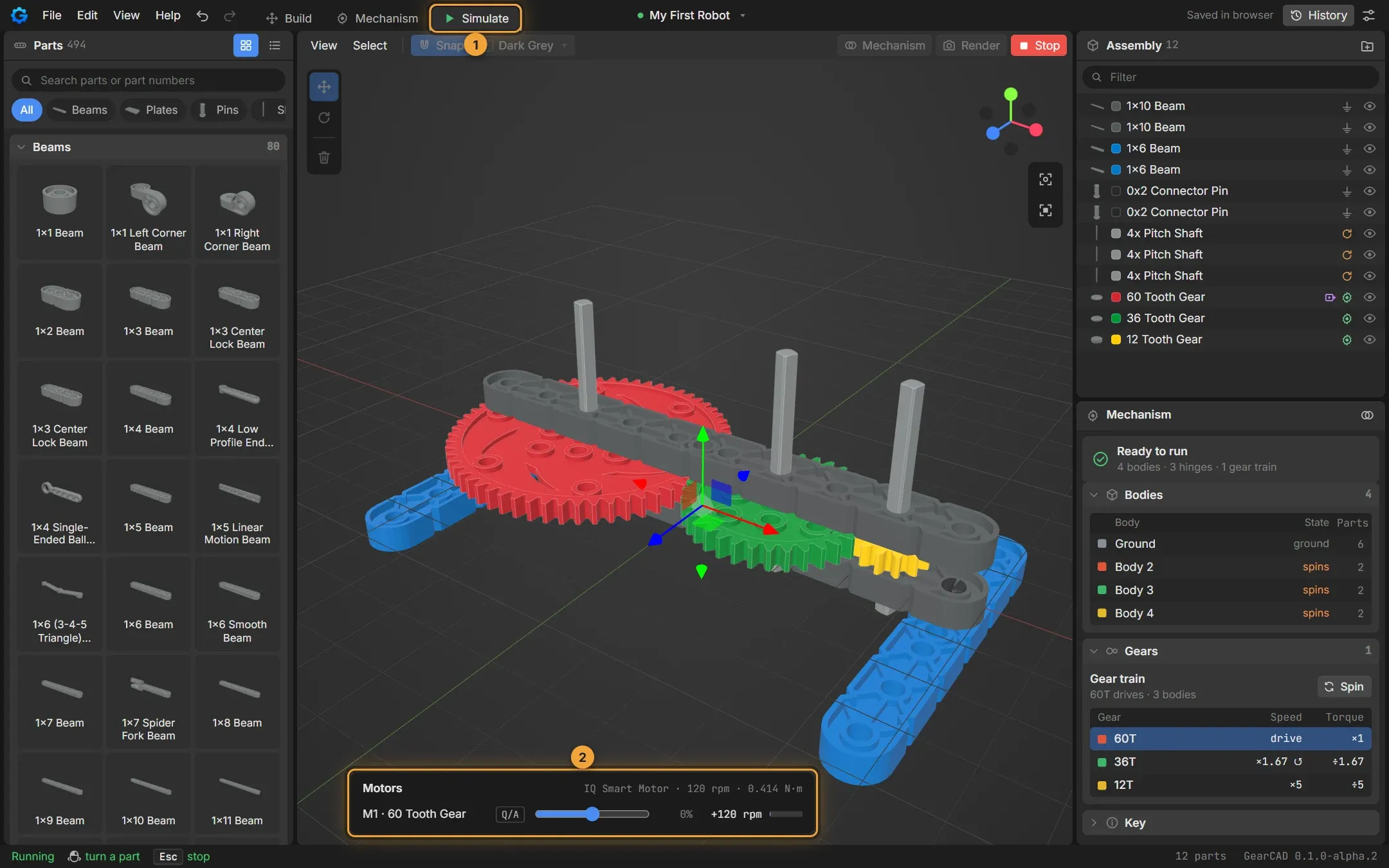
- Simulate is on.
- The Motors panel, with a row for each motor.
Control the motors
Section titled “Control the motors”Each motor gets two keys: one for forward, one for reverse.
| Motor | Forward | Reverse |
|---|---|---|
| M1 | Q | A |
| M2 | W | S |
| M3 | E | D |
| M4 | R | F |
| M5 | T | G |
| M6 | Y | H |
Hold a key to run the motor at full speed. For a steady speed, drag the motor’s slider instead: from −100% (full reverse) to +100% (full forward). Double-click the slider to stop the motor.
The panel shows how fast each motor is turning (in rpm) and how much torque it has left. A Smart Motor runs at up to 120 rpm. If the bar is full and the speed is low, the motor is working hard: your mechanism may need a different gear ratio.
You can also drag a part with the mouse to push or turn it.
Good to know
Section titled “Good to know”- Parts that aren’t attached to anything stay where you built them, so a half-finished design doesn’t fall apart the moment you press Run.
- Simulate uses simple box shapes for parts. Gears turn at their real ratios, but omni wheels don’t roll sideways yet, and contact between parts is approximate.