

Version history
GearCAD keeps a history of every CAD, so you can always get back to how it was before.
Autosaves
Section titled “Autosaves”While you work, GearCAD makes an autosave every few minutes. You don’t have to do anything. To keep the list manageable, older autosaves are thinned out: all of today’s are kept, then one an hour for a week, one a day for a month, and one a week after that.
Saved versions
Section titled “Saved versions”For points you’ll want to come back to, save a version: when the drivetrain is finished, before a big change, or before a competition.
Press Ctrl+S (or File → Save version…).
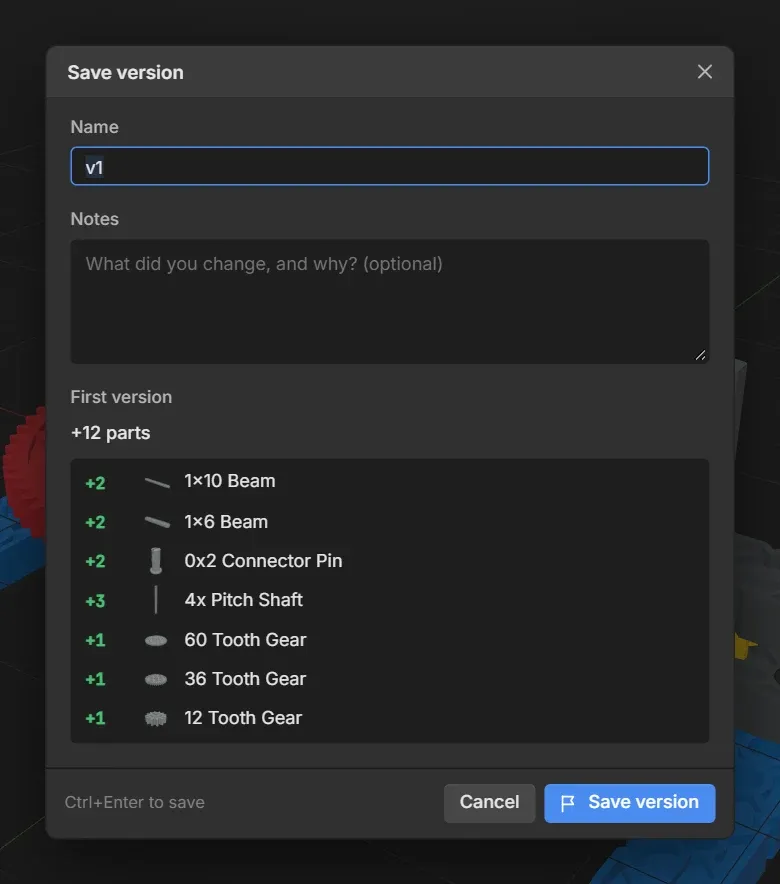
Give it a name and, if you like, some notes about what you changed and why. GearCAD adds a list of what changed since the last version (parts added, moved and removed). Saved versions are never thinned out.
Looking at the history
Section titled “Looking at the history”Click History at the top right (or press Ctrl+Shift+H).
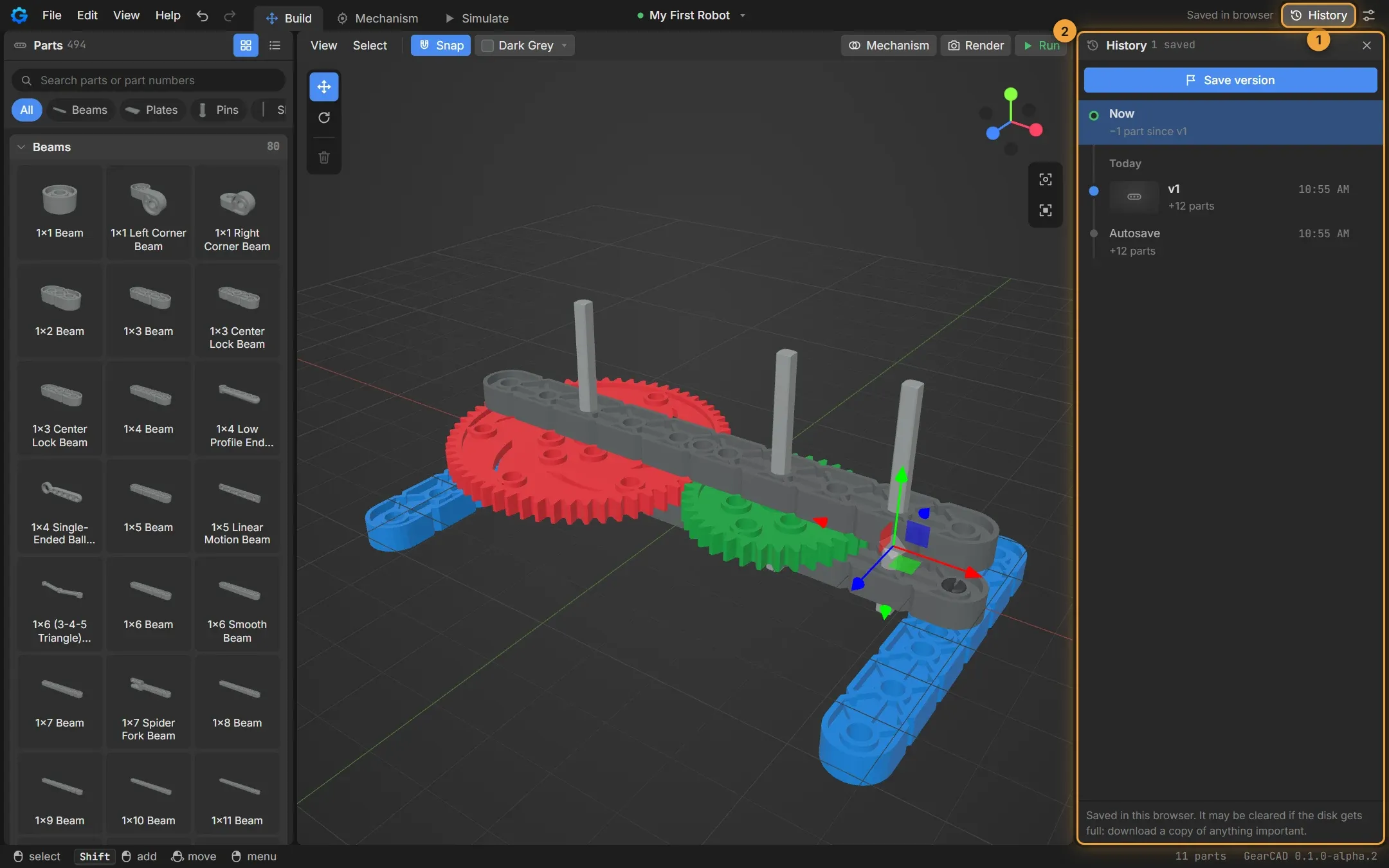
- The History button.
- The History panel. Now is your CAD as it is. Below it is every saved version and autosave, newest first, with what changed in each.
Click a version to look at it in 3D. You can turn the view and look around, but not change anything. A bar at the top gives you two choices:
- Restore this version makes it your CAD again. What you had is kept in the history first, and Ctrl+Z undoes the restore, so it’s always safe.
- Back to now (or Esc) returns to your CAD as it was.
You can also keep an autosave as a named version, edit a version’s name and notes, download a version as its own file, or delete it.
History in files
Section titled “History in files”.gearcad files include the history, so it’s there on every computer you
open the file on. To send someone just the design, use Download without
history in the CAD’s menu.