

Adding parts
Every VEX IQ part is in the Parts area on the left: beams, plates, pins, shafts, gears, wheels, motors, sensors and more. The number next to Parts tells you how many are showing.
Search for a part
Section titled “Search for a part”The quickest way to find a part is to type its name or its VEX part number into the search box at the top (or press Shift+A to jump there).
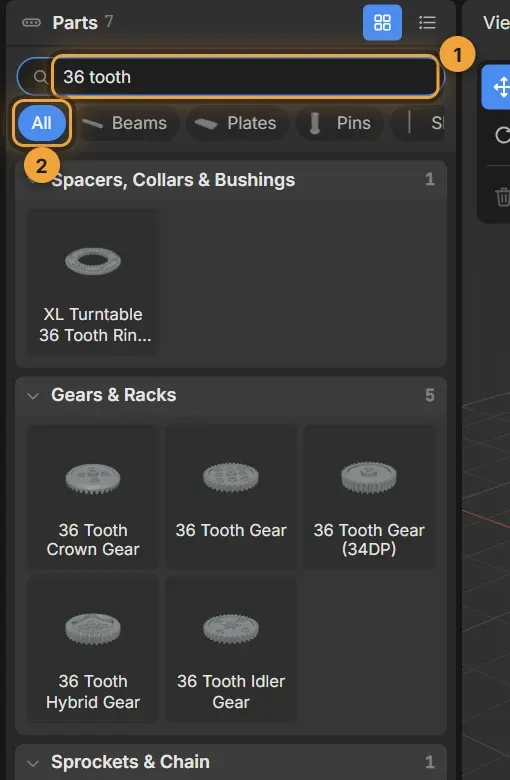
- Type a few words, like
36 tooth,2x8 beamoromni. Every word has to match, sogear 36and36 gearfind the same thing. Part numbers work too:228-2500-005. - All shows every group. Clear the search to see everything again.
Browse by group
Section titled “Browse by group”The buttons under the search box show one group at a time. Scroll them sideways to see them all.
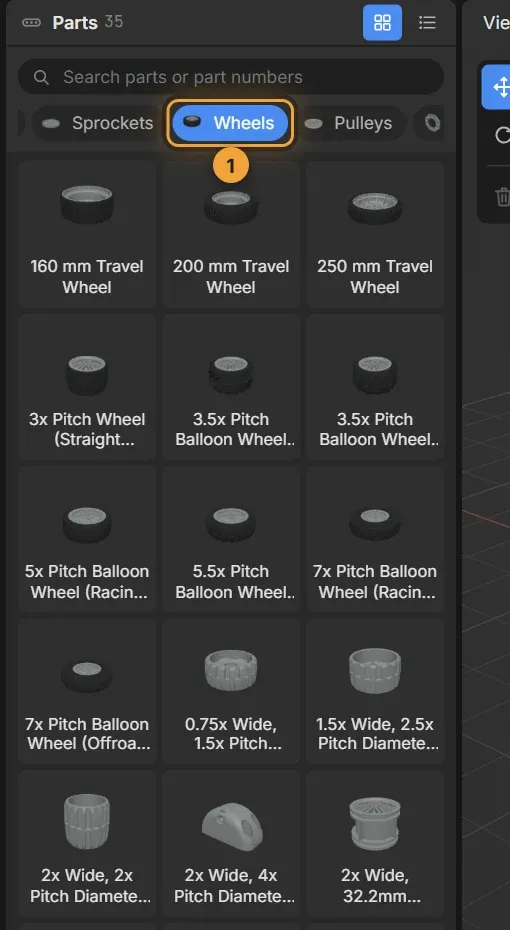
- Click a group, like Wheels, to see only those parts. Click All to go back.
The two buttons at the top right of the area switch between pictures and a list. The list fits more parts on screen once you know their names.
Place the part
Section titled “Place the part”- Click the part you want. It’s now attached to your mouse.
- Move the mouse over the 3D view. The part follows it and snaps to holes, pins and shafts nearby, so it lines up exactly.
- Click to put it down.
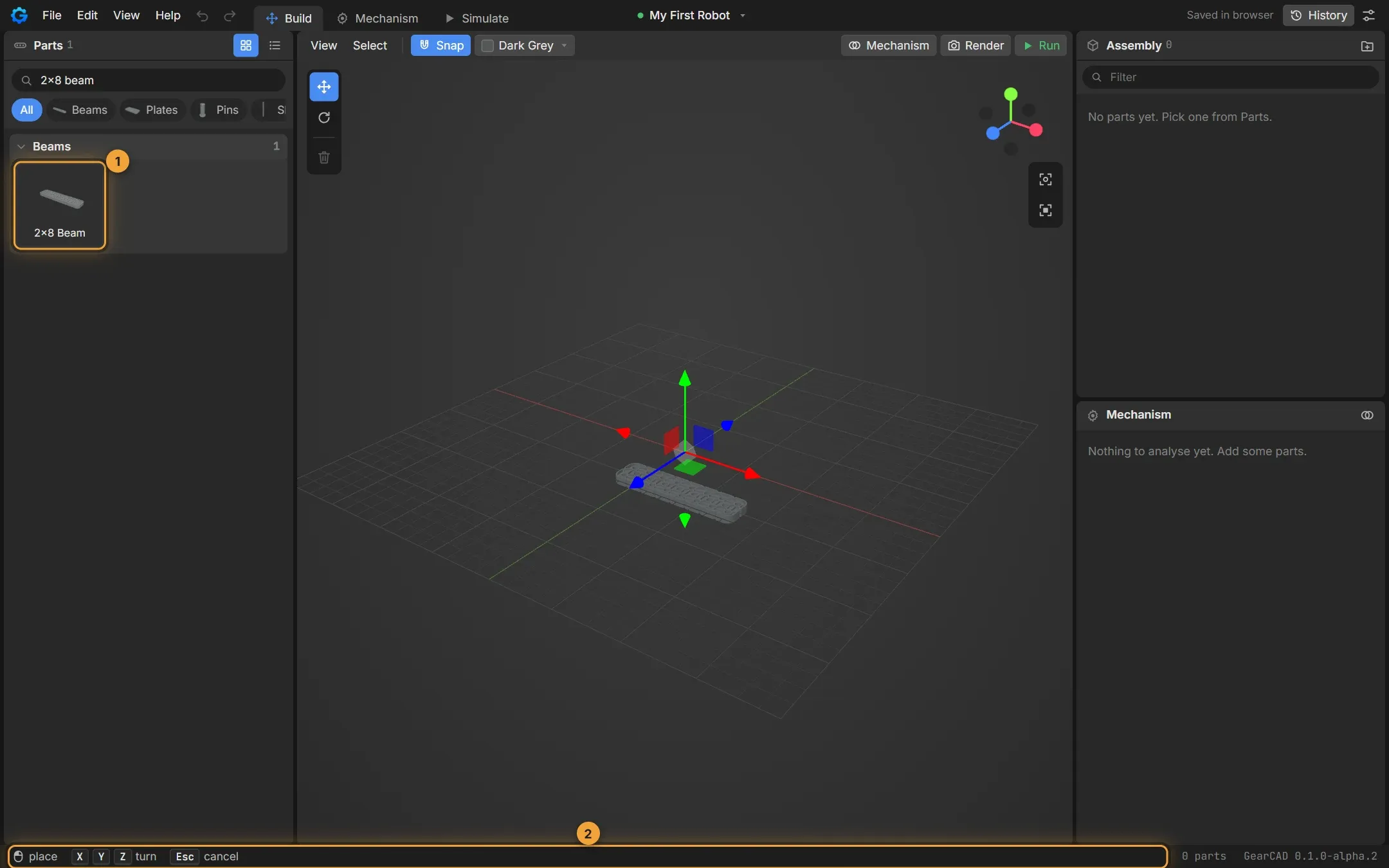
- The part you picked up.
- The status bar shows what you can do while you’re holding a part.
While you’re holding a part:
| Key | What it does |
|---|---|
| X Y Z | Turn the part 90° around that axis before you place it |
| Tab | Try the next connector on the part (when it’s snapping to the wrong hole) |
| Esc | Put it back without placing it |
Moving and turning parts shows how to adjust a part once it’s placed.