

Mechanism
The Mechanism workspace shows how GearCAD thinks your design will move. Use it to check a gear ratio before you build, and to find parts that aren’t connected properly.
Click Mechanism at the top of the screen.
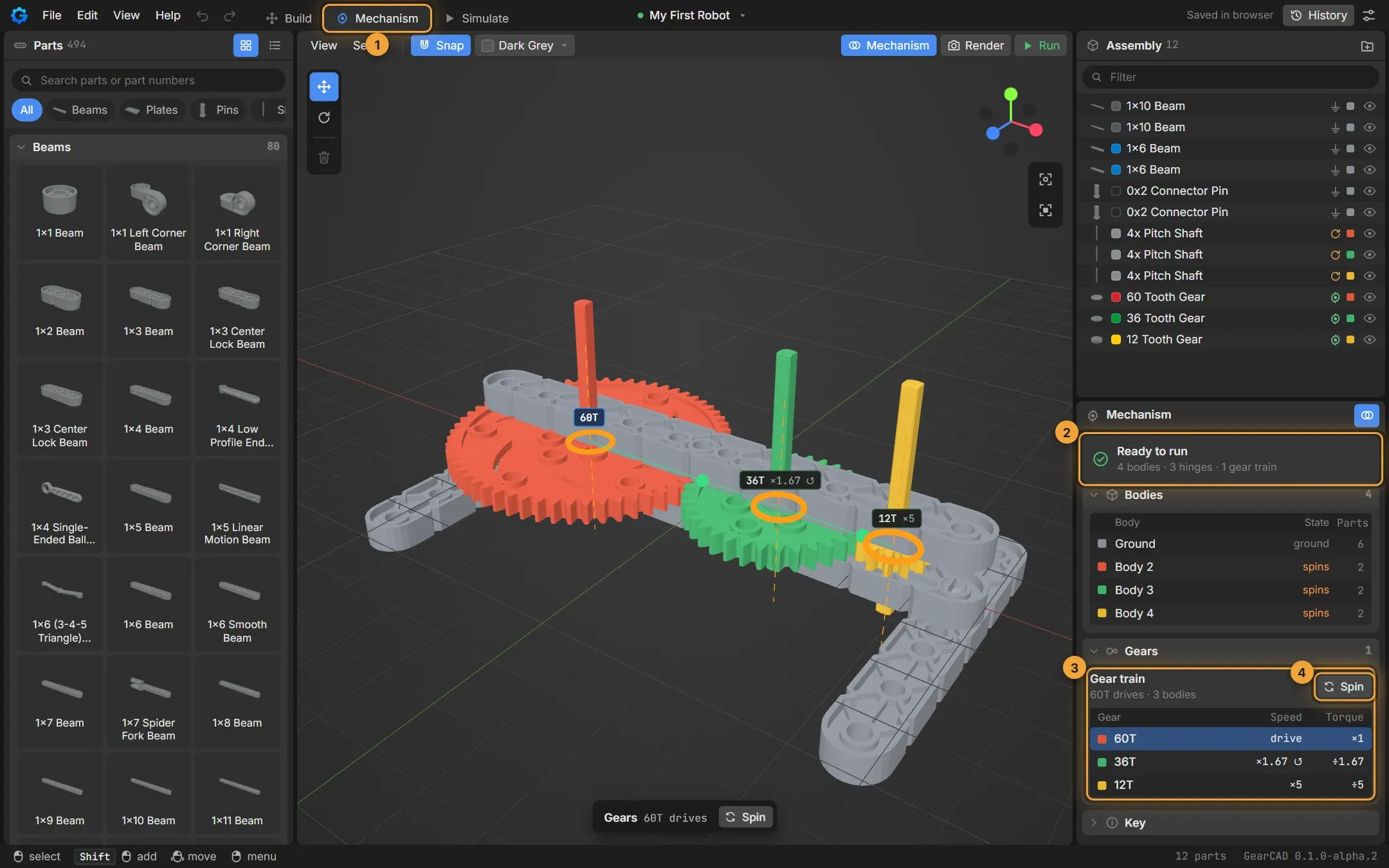
- The Mechanism workspace. Parts are coloured by which body they belong to.
- The status: Ready to run, or how many problems GearCAD found.
- The gear train, with the speed and torque of every gear.
- Spin turns the gears on screen at their real ratios.
Bodies
Section titled “Bodies”A body is a group of parts that are locked together and move as one. In the 3D view, each body has its own colour.
- Ground is the frame: the body everything else is attached to.
- A body that spins turns on a shaft or pin (a hinge).
- A loose body isn’t attached to anything. It would fall off the real robot.
Click a body in the list to select its parts.
Gear trains
Section titled “Gear trains”When gears mesh, GearCAD finds the gear train and shows a table:
| Column | What it means |
|---|---|
| Gear | The gear (60T = 60 teeth) |
| Speed | How fast it turns compared with the driving gear. ×5 means five times faster; ÷3 means three times slower. ↺ means it turns the other way. |
| Torque | How strong it turns compared with the driving gear. Speed and torque always trade off: a gear that’s 5 times faster has a fifth of the torque. |
The highlighted row (drive) is the gear doing the driving, usually the one on the motor. Click another row to drive from that gear instead.
In the example, the 60-tooth gear drives a 12-tooth gear, so the 12-tooth gear turns 60 ÷ 12 = 5 times faster (with a fifth of the torque).
Problems and how to fix them
Section titled “Problems and how to fix them”When something’s wrong, the status turns yellow or red and a Problems list appears. Each problem has a button that fixes it.
| Problem | What it means | Fix |
|---|---|---|
| Jammed | Gears that mesh can’t all turn, for example three gears in a loop, or teeth that overlap | Fix jam turns the gears so their teeth fit, where it can |
| Almost mesh | Two gears are a little too far apart or too close to mesh | Snap moves them so they mesh |
| Loose piece | A part isn’t connected to the frame | Connect it with a pin or shaft, or Delete it |
| Pin or shaft not in a hole | A pin or shaft isn’t holding anything | Move it into a hole, or Delete it |
| Motor with no shaft | A motor has nothing to turn | Put a shaft in it |
Click the text of a problem to select the parts it’s about.
The Key panel at the bottom explains the lines and colours in the 3D view: hinges, gears that mesh, gears that almost mesh, and jams.