

Moving around the 3D view
With a mouse
Section titled “With a mouse”These are GearCAD’s standard controls. They only apply when you drag on empty space: dragging a selected part always moves the part.
| To | Do this |
|---|---|
| Orbit (turn the view around the model) | Left-drag |
| Pan (slide the view) | Right-drag |
| Zoom | Scroll the wheel, or drag with the wheel pressed |
| Zoom to the selection | F |
A right click (without dragging) opens the menu for whatever’s selected.
With a trackpad
Section titled “With a trackpad”| To | Do this |
|---|---|
| Orbit | Move two fingers |
| Zoom | Pinch |
The view cube and the frame buttons
Section titled “The view cube and the frame buttons”The coloured axes in the top-right corner of the 3D view show which way you’re looking. Click one of the dots to look straight along that axis, for example straight down from the top.
The two buttons underneath frame the selection and frame everything, the same as F and View → Frame everything.
Changing the controls
Section titled “Changing the controls”If you’ve used other CAD programs, you can make GearCAD work the same way. Click the settings button at the top right of the screen.
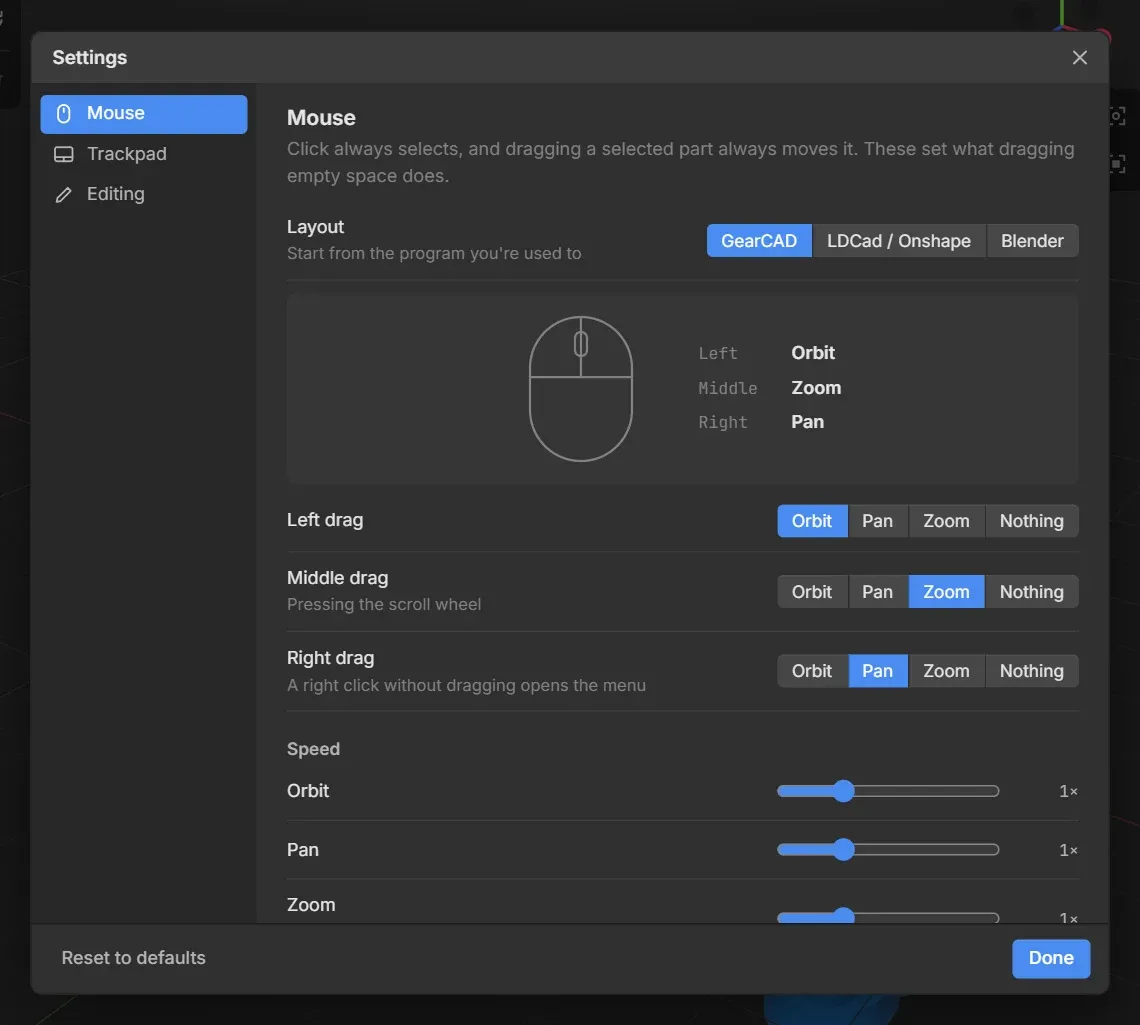
- Layout has ready-made setups for LDCad / Onshape and Blender users.
- Left drag, Middle drag and Right drag let you choose what each button does.
- Speed sets how fast orbiting, panning and zooming are.
- The Trackpad and Editing pages have more options, like turning off automatic gear meshing.
Your settings are saved in your browser.