

Saving and files
You never need to press Save. GearCAD saves every change a moment after you make it, and again whenever you switch tabs or close the window.
The top bar always tells you whether your work is safe.
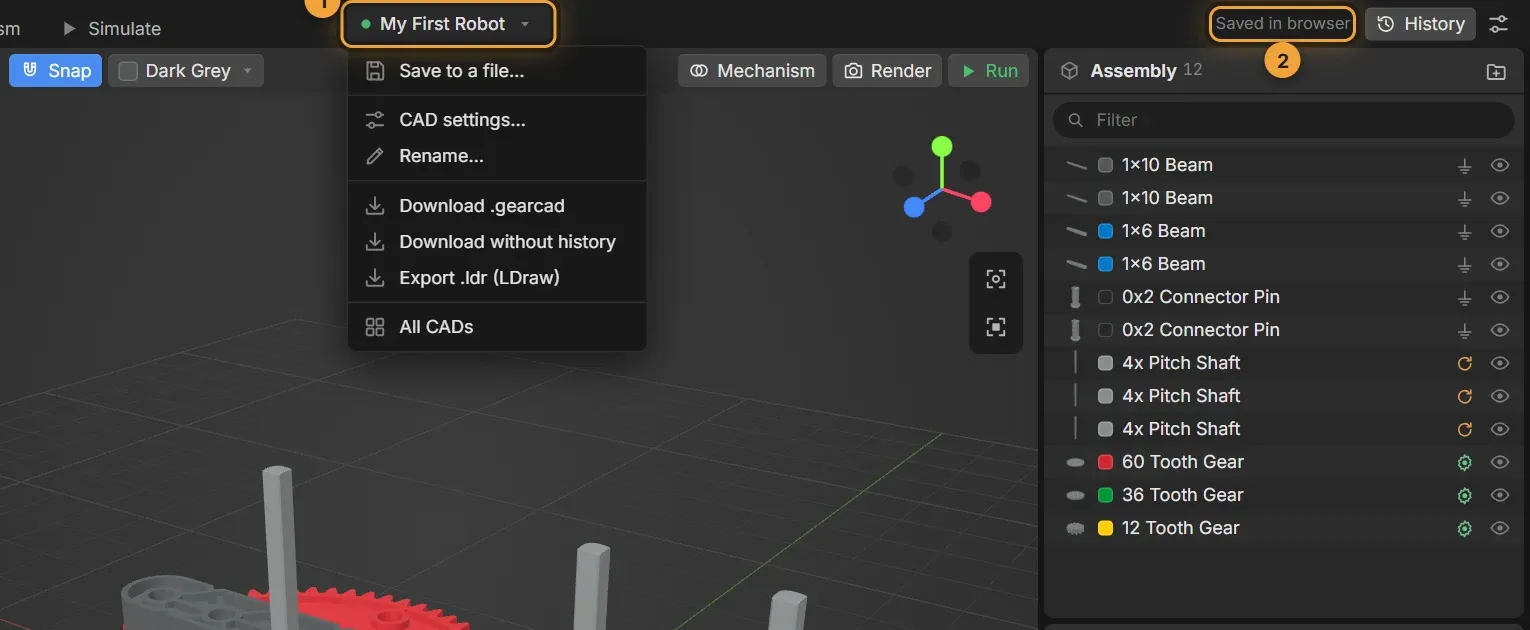
- Click your CAD’s name for its menu.
- The save status.
| Status | What it means |
|---|---|
| Saved to file | Every change is in your .gearcad file |
| Saved in browser | Saved, but only inside this browser on this computer |
| Saving… | Just a moment |
| Not saved to file / File changed | GearCAD needs you. A bar above the 3D view says what to do |
.gearcad files (Chrome and Edge)
Section titled “.gearcad files (Chrome and Edge)”In Chrome and Edge, each CAD can live in a .gearcad file, like a VEXcode
project. You choose where it goes when you make the CAD.
- Open file (on the home screen or in the File menu) opens a
.gearcadfile. From then on, changes are saved to that file. - Save as… in the CAD’s menu moves it to a new file. A CAD that’s only in the browser shows Save to a file… instead.
- After you restart the browser, it may ask permission before GearCAD saves to the file again. Click Allow in the bar above the 3D view.
On more than one computer
Section titled “On more than one computer”Save your .gearcad file in a Google Drive or OneDrive folder. When
you open the CAD, GearCAD reads the file first, so you always get the newest
copy, even if you changed it on another computer.
If the file changes while you have the CAD open (because a teammate or another computer saved it), GearCAD asks what to do: Open that version or Keep mine. Nothing is lost either way: the version you don’t pick is kept in History.
In the browser only
Section titled “In the browser only”Firefox and Safari can’t save straight to files, so they keep CADs inside the browser. That’s also what This browser does in Chrome and Edge.
Browser storage is fine for everyday work, but it can be lost if the browser’s data is cleared. Download a copy of anything important.
Downloading and sharing
Section titled “Downloading and sharing”The CAD’s menu (click its name) has:
- Download .gearcad: a copy of the CAD, with its version history.
- Download without history: a smaller copy with just the design.
- Export .ldr (LDraw): for other LDraw programs.
To share a design, send someone the .gearcad file. They open it with
Open file (or Import in Firefox and Safari).
The same menu has CAD settings… (workspace size, size limit, colour for new parts), Rename…, and All CADs, which goes back to the home screen.